Your P6 look-ahead, client-ready, in one click.
Paste your activities out of P6. Press Generate. Strata Pro rebuilds the WBS banding, filters to your window, flags what is critical or late, draws the bar chart, and fits it to one page wide.
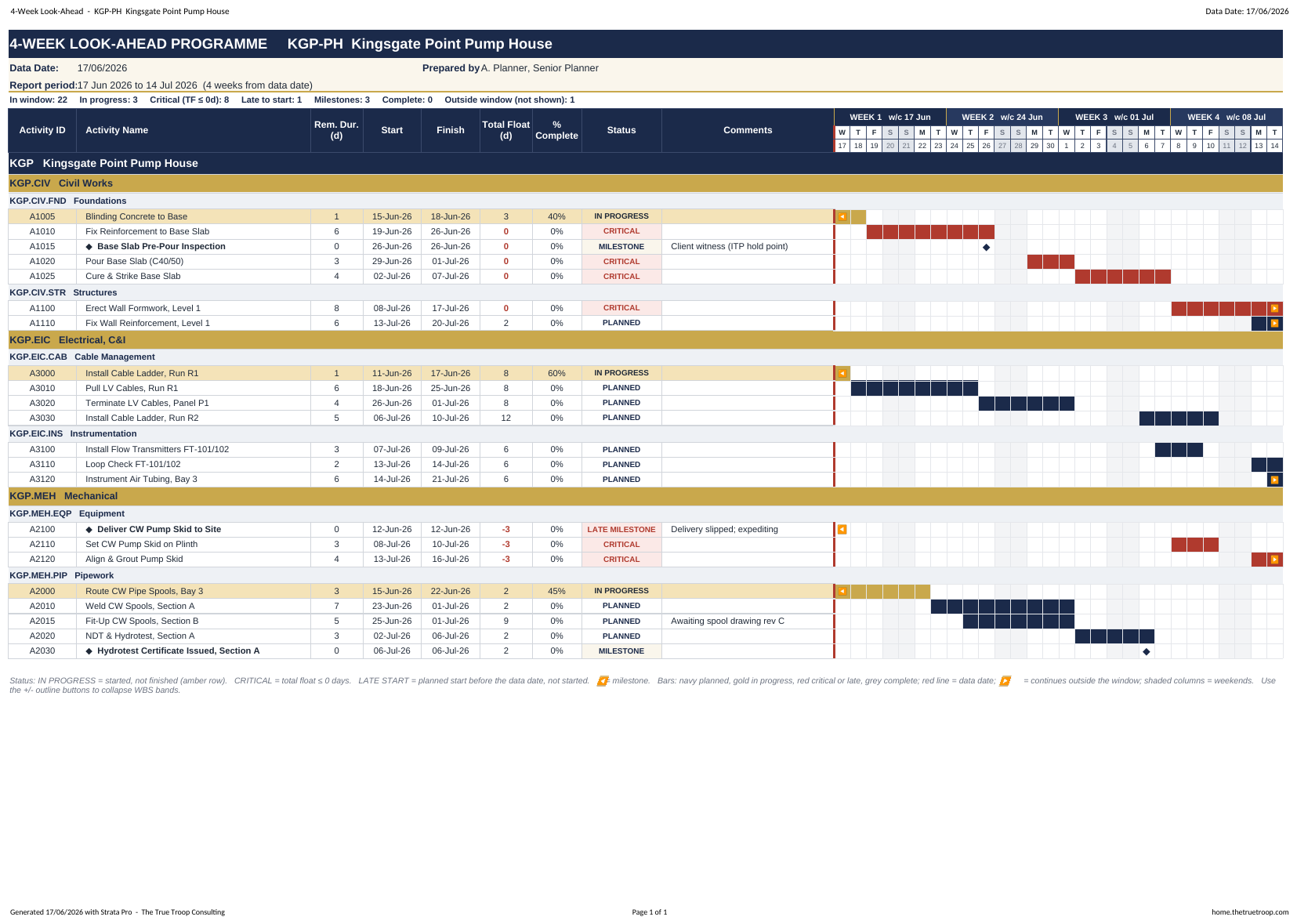
Everything you rebuild every Monday
P6 prints a flat list. Your client wants a document. Strata Pro does the hour of Excel work in between.
Filters to your window
Keeps what overlaps the look-ahead window, what is in progress and what is late to start. Everything else is dropped and counted, so the title never lies.
Reads P6 text properly
"10.00d", "-3.00d", "45%" and dates carrying the actual flag become real numbers and dates, so floats sort and totals add up.
WBS bands like P6
Level 1, 2 and 3 banded and indented, collapsible with the outline buttons, named from your own WBS Name column.
A real Gantt grid
One column per day, or per week for long windows. Bars coloured by status, weekends shaded, the data date drawn as a red line.
Status and KPIs
In progress, critical, late to start, milestone, complete, planned. Counts along the top so the reader sees the risk before reading a single row.
Your columns come too
Any extra column you show in P6 (free float, baseline dates, owner, comments) passes straight through in your order.
Five steps, once a week
Set the P6 filter and layout once, save it, and every issue after that is a paste and a click.
- Filter the programme in P6Three rows joined with "Any of the following (Or)": Start within the window, Finish within the window, Activity Status equals In Progress.
- Show your columns, save the layoutActivity ID, Name, WBS, WBS Name, Duration, Start, Finish, Total Float, % Complete. Add any others you want carried through.
- Copy, then paste into P6 PasteCtrl+A, Ctrl+C in the Activity Table, then paste into cell A2. Formatting is tidied for you.
- Set the data date and windowTwo cells: the programme data date and the number of weeks. The title, period, filter and grid all follow them.
- Click Generate Look-AheadThen Save as PDF for issue, or Copy to New Sheet for a version you can annotate. Your copies are never overwritten.

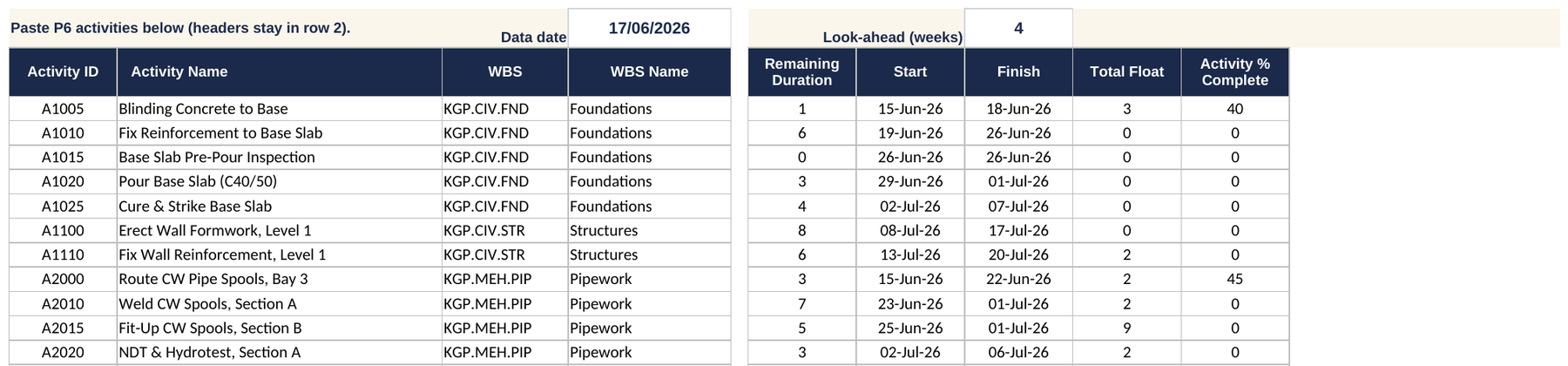
What you hand over
A4 landscape, one page wide, headers repeated on every page, ready for the site meeting or the client pack.
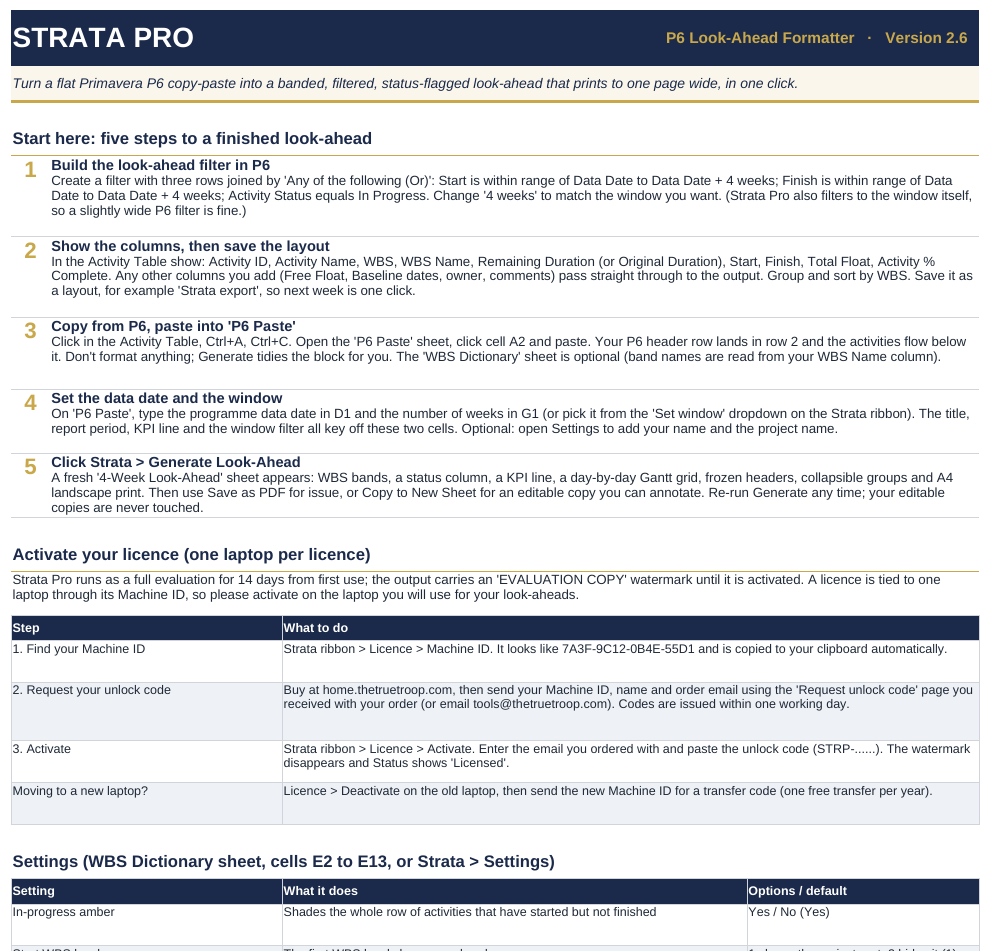
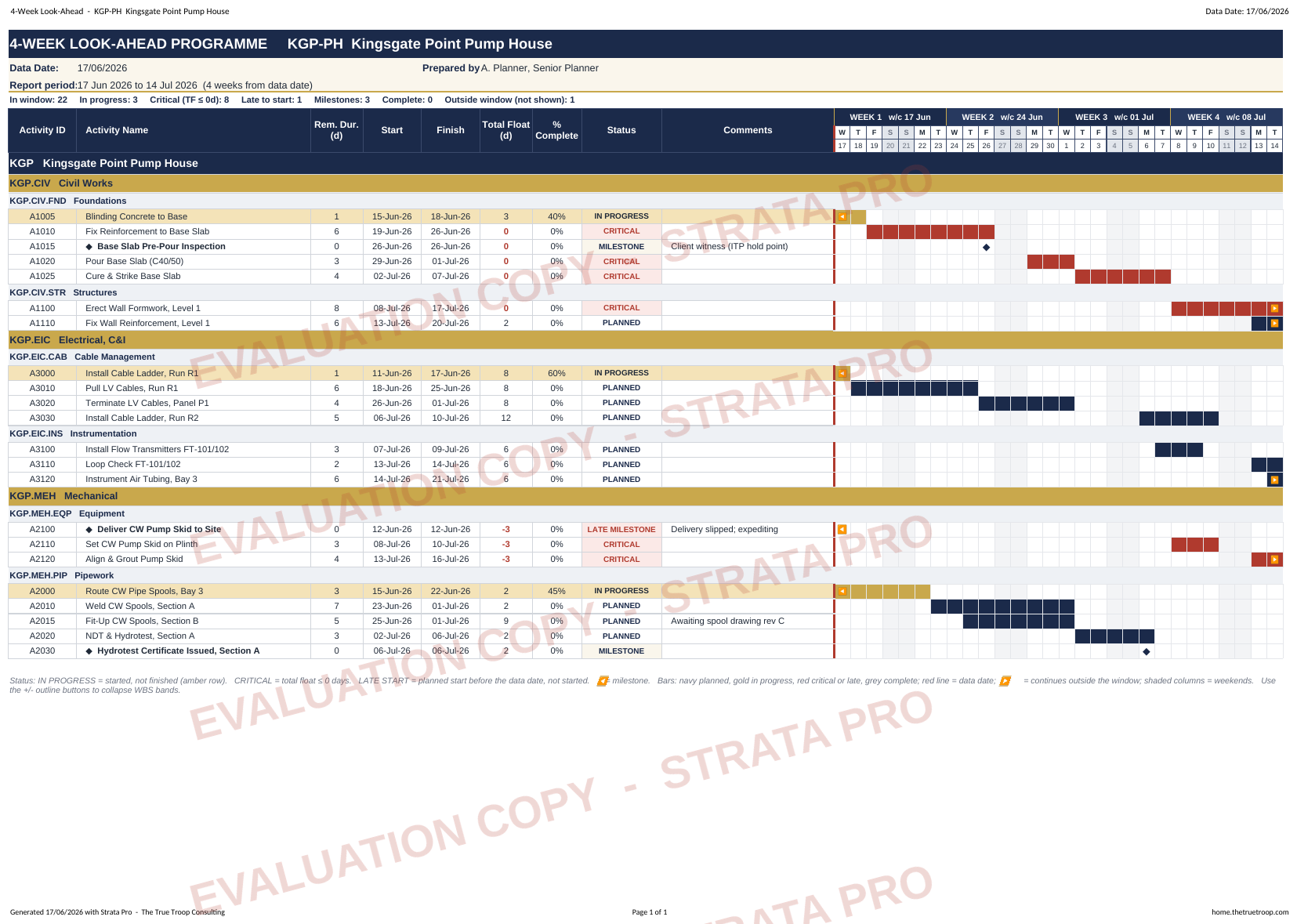
Download and unblock
Windows protects files that came from the internet, so a macro workbook needs two seconds of permission before it will run.
- Save it somewhere permanentDocuments or a project folder, not the Downloads folder and not inside a zip. Open it from there.
- Unblock the fileRight-click the file › Properties › tick Unblock › OK. Windows adds this mark to every file downloaded from the web.
- Open it and enable contentExcel shows a yellow bar across the top: click Enable Content. You only do this once per copy of the file.
- Look for the Strata tabA new tab appears on the ribbon between Home and Insert. That is the whole interface.
- Try it on the sampleThe workbook ships with a worked example loaded, so click Generate Look-Ahead straight away and see the output before you touch your own programme.
Requirements
Microsoft Excel for Windows, 2016 or later, 32 or 64 bit. Macros enabled. No add-ins, no internet connection, nothing to install.
Not Mac or web
Excel for Mac and Excel on the web cannot run the hardware check the licence uses, so Strata Pro is Windows only. P6 is Windows only too.
Your data stays put
The tool reformats a copy-paste inside your workbook. It never touches your P6 database and sends nothing anywhere.
One licence, one laptop
Run the full tool for 14 days. When you are ready, buy your licence and send the Support Reference from the ribbon: we send back an unlock code that works on that PC.
- Buy your licencePayment first, so your code can be issued straight away. You can paste your support reference at the checkout and everything arrives together.
- Open the Licence groupOn the Strata tab, click Support Ref. A short code like 7A3F-9C12-0B4E-55D1 appears and is copied to your clipboard. It is generated from this PC, holds no personal information, and gives nobody access to your computer.
- Send it to usUse the unlock code page: paste the Support Reference, add the email you ordered with, press send.
- ActivateYour code arrives by email, usually the same working day. Click Activate, enter the email and the code. The watermark disappears.
- Changing PC laterClick Deactivate on the old PC. Strata Pro stops working there and hands you a release code. Send that with the Support Reference of the new PC and we issue the transfer. One free transfer a year is included.
- 12 months of updates included
- Free transfer to a new PC, once a year
- Email support from a working planner
- Team of five: £950
Questions
Does it change my P6 programme?
No. Strata Pro only formats what you paste into Excel. It never connects to your P6 database, never writes back, and never changes a date, a duration or a logic link. If the tool is wrong about something, your programme is still the source of truth.
What if I show more columns in P6 than the eight it needs?
They come through. Anything that is not one of the core fields is carried to the right of the table in the order you pasted it: free float, baseline dates, responsible manager, comments, anything. Columns named Comments, Notes, Remarks or Description are widened and wrapped so the text stays readable.
How long can the look-ahead window be?
One to fifty-two weeks. Up to six weeks the grid draws one column per day; beyond that it switches to one column per week so the page still fits one sheet wide. You can force days, weeks or no grid at all in Settings.
Can I use it on more than one PC?
A licence covers one PC. If you change machine, click Licence › Deactivate on the old one: the tool stops working there and gives you a release code. Send that code with the Support Reference of the new PC and we issue the transfer, one a year included. If several planners need covering, the five-seat team licence is the cheaper route.
What happens after the 14 days if I do not buy?
Nothing is lost. The workbook, your pasted data and any look-ahead sheets you have already made stay exactly as they are; only the Generate button stops until a code is entered. Your evaluation output keeps the watermark, so it should not be issued to a client.
Is my data sent anywhere?
No. The tool runs entirely inside Excel on your machine with no internet connection. Activation is done by email, not by the software calling home. We hold your name, email and Support Reference in our licence register so we can support and transfer your licence.